
If you need to find windows 11 product key, you’re not alone. Many users discover they need their key only when a reinstall or hardware change forces the issue. The good news is that the key is almost always still on your system, even if Windows never showed it to you.
Key takeaways
- Your Windows 11 product key is stored on your PC even when activation uses a digital license.
- You can retrieve it through built-in tools like Command Prompt, PowerShell, or the registry.
- Finding the key helps with clean reinstalls, hardware upgrades, and license transfers.
- Third-party tools can automate the process, but built-in methods are safer and free.
Why You Need to Find Windows 11 Product Key
Most people never think about their Windows 11 activation key until something goes wrong. Then the search becomes urgent. A clean reinstall is the most common trigger. When you wipe the drive and start over, Windows may ask for a key before it will activate. If you bought a retail copy, that key is your proof of purchase. If you upgraded from Windows 10, the key may be tied to your Microsoft account instead, but having the local key still gives you a backup.
 Hardware changes create the same problem. Replacing a motherboard or moving your drive to a new PC can invalidate the digital license that Windows 11 normally relies on. In that situation, the product key is the fastest way to reactivate without calling support. Transferring a license to a new machine works the same way. A retail key can move with you, but only if you can read it.
Troubleshooting activation errors is the third big reason. When Windows suddenly reports that it’s not activated, the first thing support will ask for is your key. Without it, you’re stuck in a loop of automated diagnostics. The key is evidence that you own the license you’re trying to use.
Windows 11 often hides this key behind a digital license. That doesn’t mean the key is gone. It’s stored in the registry and can be pulled out with a few commands. Knowing how to retrieve windows 11 key before you need it saves a lot of panic later.
Windows 11 Product Key Location: Built-In Methods
When you need to find windows 11 product key quickly, the operating system itself offers several built-in routes that don’t require third-party software. These methods vary in what they reveal, so understanding each one helps you pick the right tool for your situation. We’ll walk through the Settings activation page, the System Information panel, and the classic Command Prompt wmic command, explaining exactly when each one works and what it shows.
The Settings app is the most user-friendly starting point. Open Settings, go to System, then Activation, and look for the product key entry. On many retail and OEM systems, this page displays the full 25-character key directly. However, if your copy of Windows 11 was activated with a digital license tied to your Microsoft account or hardware, the Settings page may only show an activation status like “Windows is activated with a digital license” instead of a key. That’s normal and not an error. It simply means the key is stored differently.
The System Information panel offers another angle. Press Windows + R, type msinfo32, and press Enter. In the System Summary, look for the “Product Key” field. This method pulls from the same underlying data as Settings, so it’ll show the same result: a full key on systems with a traditional product key, or a blank or placeholder value on digital-license machines. It’s a quick cross-check if you want a second confirmation of what Settings displayed.
For a more technical approach, the Command Prompt wmic command can retrieve the key from the Windows registry. Open Command Prompt as administrator and run wmic path softwarelicensingservice get OA3xOriginalProductKey. This command reads the key embedded in the system firmware, which is common on prebuilt PCs and laptops from major manufacturers. On custom-built machines or systems upgraded from Windows 10 with a digital license, the command may return nothing or an error. In those cases, the key isn’t stored in the firmware, and you’ll need the registry or PowerShell methods covered in later sections. The wmic command is a favorite among IT professionals because it bypasses the graphical interface and gives a clean, copyable result when the key exists.
How to See Windows 11 Product Key in the Registry
The Windows Registry stores activation data in a binary value called DigitalProductId, which lives under HKEY_LOCAL_MACHINE\SOFTWARE\Microsoft\Windows NT\CurrentVersion. When we open the Registry Editor and navigate to that key, we see the value on the right side. The raw data isn’t the 25-character key you’d type into an activation dialog. Microsoft encrypts the product key inside DigitalProductId, so the string of bytes looks like gibberish until it’s decoded.
To see the actual key, we copy the DigitalProductId value into a decoding script or a small utility that translates the binary data into the familiar five groups of five characters. The decoding logic reads a specific offset inside the value, applies a base-24 conversion using the alphabet BCDFGHJKMPQRTVWXY2346789, and reconstructs the key. The decoded result matches the key shown by the wmic path softwarelicensingservice get OA3xOriginalProductKey command on systems where that command still works.
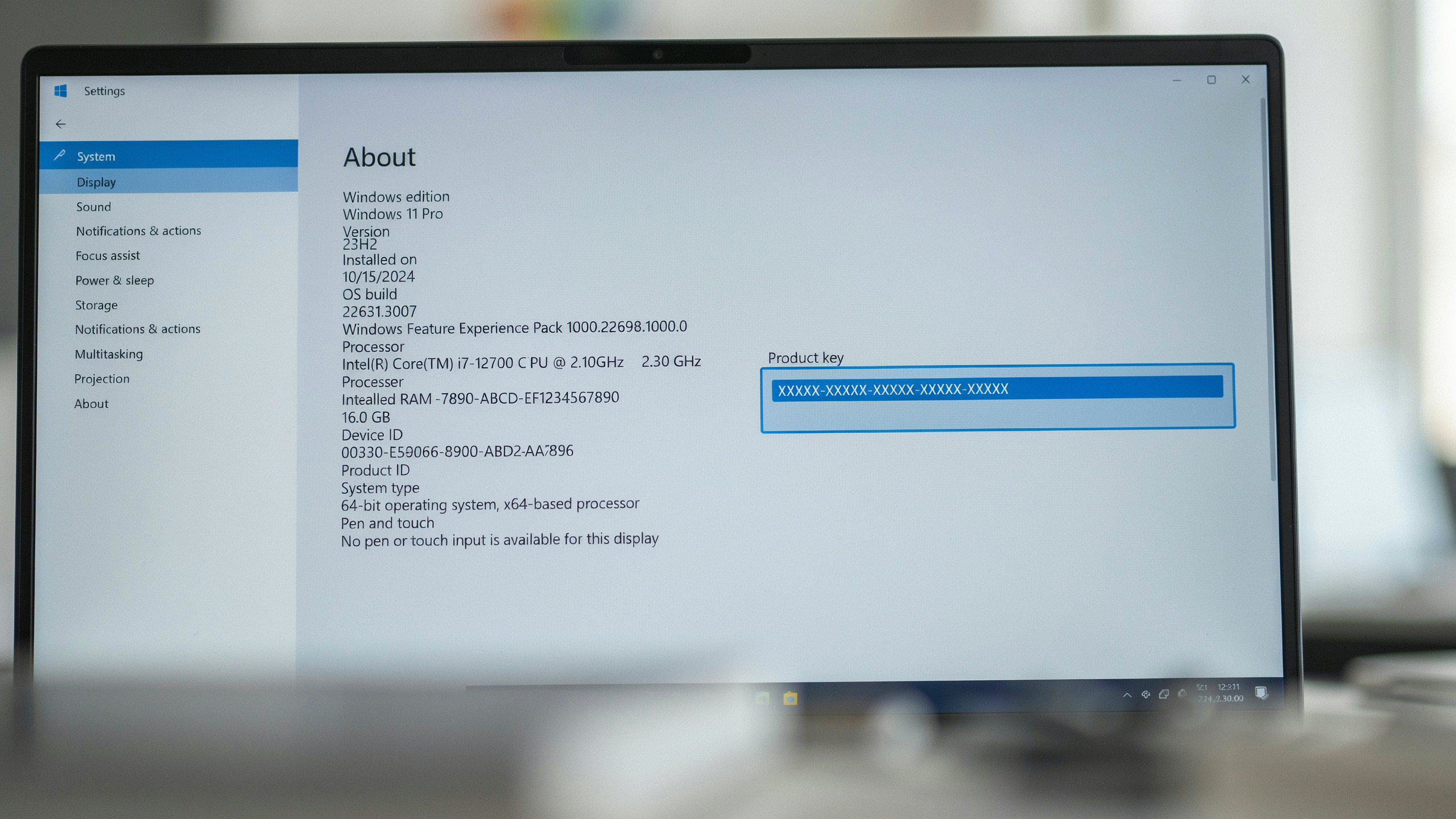 One important caution: don’t modify or delete the DigitalProductId value. The registry isn’t a scratch pad. Changing a single byte can break Windows activation, force a reactivation prompt, or leave the system unable to verify its license. When we need to retrieve a key, we open the registry in read-only mode or export the value to a text file before decoding it. That way the original data stays untouched.
For most users, the registry method is a fallback. The Settings app and PowerShell commands covered in other sections are faster and safer. But when those routes fail, the registry still holds the answer. We recommend exporting the DigitalProductId value first, then running a decoder on the exported copy. That gives you the key without ever risking the live registry hive.
Using PowerShell to Retrieve Windows 11 Key
If the registry method feels too manual, PowerShell offers a cleaner way to find windows 11 product key. This built-in tool reads the same encrypted value from the registry, decodes it, and prints the 25-character key on screen. The process takes under a minute and works on most Windows 11 installations, including Home and Pro editions.
Open PowerShell as an administrator by right-clicking the Start button and selecting Terminal (Admin). Then paste the following command and press Enter:
(Get-WmiObject -query 'select * from SoftwareLicensingService').OA3xOriginalProductKeyThis command queries the Windows licensing service and returns the original product key stored in your system’s firmware or registry. If the output is blank, your device may use a digital license instead of a stored key, which is common on newer laptops that shipped with Windows 11 preinstalled.
For a more detailed script that works even when the OA3x value is missing, try this alternative:
$map="BCDFGHJKMPQRTVWXY2346789"; $value=(Get-ItemProperty "HKLM:\SOFTWARE\Microsoft\Windows NT\CurrentVersion").DigitalProductId[52..66]; $key=""; for($i=24; $i -ge 0; $i--){ $r=0; for($j=14; $j -ge 0; $j--){ $r=($r*256) -bxor $value[$j]; $value[$j]=[math]::Floor($r/24); $r=$r%24 }; $key=$map[$r]+$key; if(($i%5 -eq 0) -and $i -ne 0){ $key="-"+$key } }; $keyThis script decodes the DigitalProductId registry value, which contains your Windows 11 activation key in an obfuscated format. The loop reverses the encoding algorithm Microsoft uses, producing the familiar five-group key. You can safely copy and paste this entire block into PowerShell; it only reads data and never modifies your system.
Once the key appears, write it down or save it in a password manager. Many users pair this step with a quick check of the windows 11 product key location in the registry to confirm both methods return the same result.
Windows 11 License Key Finder: Third-Party Tools
When built-in methods feel too technical or time-consuming, a Windows 11 license key finder can scan your system and surface the stored product key in seconds. These utilities read the same registry and firmware locations we covered earlier, but they package the process into a simple interface. That convenience is real, and for many users it’s the fastest way to retrieve Windows 11 key data without touching a command line.
The risk comes from the download itself. Search results for key-finder software are crowded with bundled installers, fake tools, and outright malware. A free utility that promises to recover your key may also install browser hijackers or keyloggers. Before running anything, verify the source: download only from the developer’s official site or a trusted repository, check the digital signature, and scan the file with Windows Defender or a second opinion tool like VirusTotal. A legitimate key finder should never ask for admin rights beyond what the scan requires, and it shouldn’t need an internet connection to read a local key.
We recommend treating third-party tools as a last resort after the registry and PowerShell methods. If you do use one, choose a well-known utility with a long update history and active user reviews. The goal is to find windows 11 product key data safely, not to trade one problem for another.
Windows 11 Activation Key vs. Digital License
When you find windows 11 product key, you may be looking at a 25-character code that activates a single installation. A digital license works differently. It’s tied to your Microsoft account and your device hardware, not to a printed card or an email from a retailer. If you upgraded from Windows 10 for free or bought Windows 11 from the Microsoft Store, you almost certainly have a digital license rather than a standalone activation key.
To check which type you have, open Settings, go to System, and select Activation. Under Activation state, you’ll see either “Windows is activated with a digital license” or “Windows is activated using your organization’s activation service.” If you see a product key listed, that’s a retail or OEM key. If the section only shows a digital license, your entitlement lives in the cloud and reactivates automatically after a clean install on the same hardware.
This distinction matters when you reinstall Windows 11. A digital license means you can skip entering a key during setup and sign in with the same Microsoft account to reactivate. A physical key must be typed in again, so keeping a copy in a password manager or a printed note is wise. If you replace a major component like the motherboard, a digital license may not transfer, while a retail key usually can be moved to new hardware. Knowing which one you have saves time and prevents activation errors later.
What to Do If You Cannot Find Windows 11 Product Key
If you cannot find windows 11 product key through the registry, PowerShell, or a third-party tool, don’t panic. The first place to check is your original purchase record. Look for a confirmation email from Microsoft or the retailer you bought the license from, and check the order history in your account. If you bought a physical copy, the key is usually printed on a card inside the box or on a sticker attached to the packaging. Many users overlook the email receipt, which often contains the key in plain text or as a click-to-reveal field.
Next, sign in with the Microsoft account you used when you first activated Windows 11. On most modern devices, your license is linked to that account as a digital license rather than a standalone key. Go to Settings, then System, then Activation, and look for the message that says Windows is activated with a digital license linked to your Microsoft account. If you see that, you don’t need a physical key at all. When you reinstall Windows 11 on the same hardware, activation happens automatically after you sign in. This is the most common reason people cannot find a key: there isn’t one to find because the digital license replaces it.
If neither the purchase record nor the Microsoft account resolves the issue, contact Microsoft support directly. Have your order number, the email address used for purchase, and the device’s serial number ready. Support agents can verify your license and, in many cases, issue a replacement key or reactivate the device remotely. Avoid third-party sellers who claim they can recover a lost key for a fee, because legitimate recovery always goes through Microsoft or your original retailer. Remember that a digital license is tied to your hardware and account, so even if you cannot find windows 11 product key, your copy of Windows may already be permanently activated.
Common Mistakes When Trying to Retrieve Windows 11 Key
We see the same errors repeat when people try to find windows 11 product key on their own. The most damaging one is running a random PowerShell script from a forum or video comment. Many of those scripts are outdated, and some are wrapped in malware that quietly logs keystrokes or steals stored credentials. If you must use a script, copy it from Microsoft Learn or a source you already trust, and read every line before you run it.
Editing the registry is another common trap. The BackupProductKeyDefault value under HKLM\SOFTWARE\Microsoft\Windows NT\CurrentVersion\SoftwareProtectionPlatform is the right place to look, but one wrong deletion or rename in that hive can break activation or other Windows services. We always recommend exporting the key first and never changing values unless you know exactly what they do.
A quieter mistake is confusing the product ID with the product key. The product ID is a 20-character string shown in Settings under About, and it identifies your installation, not your license. It cannot activate Windows on a new machine. The real key is 25 characters, grouped in fives, and lives in the registry or your Microsoft account. Mixing these up leads people to copy the wrong string and wonder why activation fails.
Finally, avoid key generators. Any tool that promises to create a working Windows 11 activation key is almost certainly bundling malware or a coin miner. Legitimate keys come from Microsoft, an authorized retailer, or a preinstalled OEM license. If you cannot retrieve windows 11 key through the methods in earlier sections, contact Microsoft support or check your purchase email before reaching for a generator.
Frequently Asked Questions
Is the Windows 11 product key stored in the BIOS?
On most modern laptops and prebuilt desktops, yes. Manufacturers embed the key in the UEFI firmware, so Windows 11 reads it automatically during activation. You can retrieve it with a PowerShell command or a BIOS reader tool, and it survives a clean install on the same machine.
How do I find my Windows 11 product key after upgrading from Windows 10?
If you upgraded with a digital license, there’s no new 25-character key. Your activation is linked to your Microsoft account or hardware ID. To see the generic key Windows 11 uses, run the registry or PowerShell method, but the real proof of ownership is the digital entitlement.
Are free key-finder tools safe to use?
Reputable open-source tools like ShowKeyPlus are generally safe when downloaded from official sources, but many free key finders bundle adware or send your key to a remote server. We recommend using built-in Windows methods first, and if you choose a third-party tool, verify its publisher and scan the installer.
Can I find my Windows 11 product key without any software?
Yes, you can read it from the registry using the Regedit path HKLM\SOFTWARE\Microsoft\Windows NT\CurrentVersion and the DigitalProductId value, though the key is encrypted and needs decoding. For most users, the PowerShell command is easier and requires no extra software.
What if my Windows 11 key shows as a generic OEM key?
Generic keys like VK7JG-NPHTM-C97JM-9MPGT-3V66T are placeholders used by Microsoft for volume or digital-license activations. They don’t prove ownership and cannot be used to activate another PC. Your actual entitlement is stored in the BIOS or your Microsoft account, not in that visible key.